
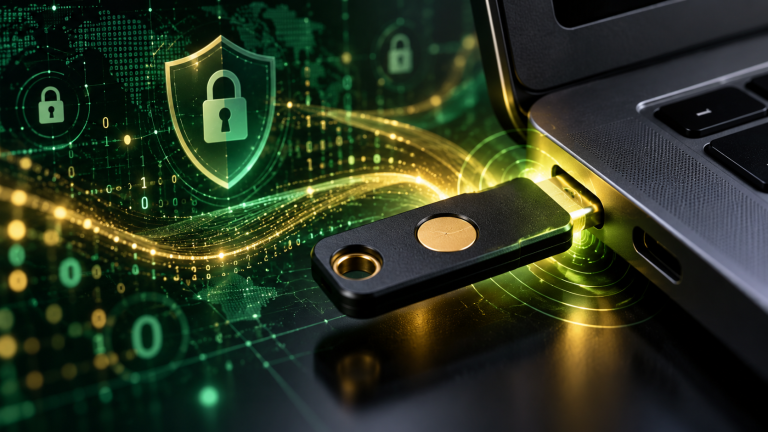
For more than fifteen years, adding a mobile phone number to an online account was hailed as the standard for personal cybersecurity. If an attacker stole your password in a database leak, they still could not log in without the six-digit code texted to your smartphone. Today, that conventional wisdom is dangerously obsolete.
Major cybersecurity bodies worldwide—including the U.S. Cybersecurity and Infrastructure Security Agency (CISA Multi-Factor Authentication Guidance) and the UK National Cyber Security Centre (NCSC)—now actively urge individuals and organizations to phase out SMS two-factor authentication (2FA). The underlying cellular infrastructure was never engineered for cryptographic identity verification. In this comprehensive, hands-on guide, we break down why SMS verification has become a critical liability, analyze the full hierarchy of modern authentication technologies from TOTP to FIDO2 hardware keys, and walk you through a foolproof migration strategy without locking yourself out.
The Anatomy of SMS Authentication Failures
To understand why SMS two-factor verification fails, we must examine the physical and logical pathways through which text messages travel. Unlike modern encrypted messaging apps that employ end-to-end Signal Protocol encryption, cellular Short Message Service (SMS) relies on legacy telecommunication routing.
1. SIM-Swapping (Social Engineering at the Carrier Level)
SIM swapping represents the most common and damaging attack vector against SMS 2FA. In this scenario, an attacker does not need to hack your physical phone or infect your operating system with malware. Instead, they gather basic personal identifying information about you (often harvested from data breaches, public records, or social media profiles) and contact your mobile carrier’s customer support department.
Impersonating you, the attacker claims their phone was lost, damaged, or upgraded, and requests that your active phone number be reassigned to a blank SIM card or digital eSIM in their possession. Corrupt carrier store employees have also been caught executing unauthorized SIM swaps for illicit payments. The moment the carrier activates the new SIM card, your phone loses cellular service entirely, and all incoming calls and SMS verification codes are instantly diverted to the attacker’s hardware.
2. Telephony Protocol Vulnerabilities (SS7 and Diameter Exploitation)
Even if an attacker cannot socially engineer your mobile carrier, SMS messages are vulnerable in transit across the global cellular network. International mobile carriers route traffic using the Signaling System No. 7 (SS7) protocol suite, originally designed in 1975 when only a handful of state-owned telecom monopolies existed. SS7 lacks built-in cryptographic authentication, allowing sophisticated threat actors, intelligence agencies, and private surveillance contractors to intercept, read, and redirect SMS messages worldwide without physical access to the target device.
3. Modern Reverse-Proxy Phishing Kits (No Origin Binding)
Automated phishing toolkits like Modlishka and Evilginx operate as transparent reverse proxies between a victim and a legitimate service (such as Google, Microsoft, or your bank). When you land on a deceptive login portal and type in your password and your SMS verification code, the proxy forwards the credentials to the real server in real-time, intercepts the resulting session authentication cookie, and hands it directly to the attacker. Because SMS has zero concept of Origin Binding—meaning the text message cannot verify what domain name is currently loaded in your browser window—it cannot protect you against modern phishing proxies.
The Multi-Factor Authentication Hierarchy: Worst to Best
Not all multi-factor authentication methods provide equal defense. Security professionals categorize authentication factors into a strict hierarchy based on their resistance to remote interception and real-time phishing.
| Tier & Method | Protocol / Standard | Phishing Defense | SIM-Swap Risk | Recommended Verdict |
|---|---|---|---|---|
| Level 1: SMS / Voice Calls | PSTN / SS7 Telephony | Zero (Easily bypassed) | Extremely High | Legacy fallback only. Disable when alternatives exist. |
| Level 2: Software TOTP Apps | RFC 6238 / RFC 4226 | Moderate (Vulnerable to MitM) | Zero (Fully immune) | Excellent baseline standard for everyday accounts. |
| Level 3: Hardware Security Keys | FIDO2 / WebAuthn / CTAP2 | Highly Phishing-Resistant | Zero (Fully immune) | The ultimate enterprise-grade security standard. |
| Level 4: Passkeys (FIDO) | FIDO Alliance Client Sync | Highly Phishing-Resistant | Zero (Fully immune) | Modern passwordless replacement across supported ecosystems. |
Level 1: SMS and Voice Call Verification (Legacy Fallback)
SMS and automated voice verification remain better than having zero two-factor protection at all. If a non-targeted credential-stuffing bot tries your leaked password against an account protected by SMS, the prompt will stop the automated script. However, because SMS relies on unencrypted cellular protocols, offers zero cryptographic origin validation, and can be intercepted via SIM-swapping or SS7 surveillance, it should strictly be treated as a legacy fallback when a service offers no other option.
Level 2: Software Authenticator Apps (TOTP: RFC 6238)
Time-based One-Time Password (TOTP) authenticator apps eliminate telecommunication carriers from your security perimeter entirely. When you configure an authenticator app, the server and your device securely exchange a secret cryptographic seed key (usually represented as a QR code). Every 30 seconds, the app calculates an HMAC-SHA1 hash combining the secret seed and the current Unix epoch timestamp, generating a dynamic 6-digit numeric token.
Because the mathematical calculation occurs entirely inside your device’s memory, TOTP codes function flawlessly in airplane mode with zero Wi-Fi or cellular connectivity. Even if an attacker executes a successful SIM-swap on your mobile number, your TOTP codes remain completely untouchable inside your phone.
Top Recommended Open-Source TOTP Authenticator Apps:
- Aegis Authenticator and Ente Auth (both privacy-focused, end-to-end encrypted solutions) (Android): Completely free and open-source (GPL-v3). Supports AES-256-GCM vault encryption, biometric unlocking, custom icons, and automated scheduled backups to internal storage or Nextcloud. Highly recommended for Android power users.
- Ente Auth (iOS, Android, Windows, macOS, Linux): Modern open-source authenticator featuring end-to-end zero-knowledge cloud synchronization. Your seeds are encrypted client-side before touching Ente’s servers, allowing seamless multi-device access across phone and desktop.
- 2FAS (iOS, Android): Clean open-source authenticator featuring optional anonymous cloud backup via iCloud or Google Drive. Includes a companion browser extension that pushes authentication requests directly to your mobile screen.
- Bitwarden Authenticator (Integrated or Standalone): If you utilize Bitwarden’s premium tier, TOTP tokens can be automatically populated directly within your credential autofill workflow while keeping all data protected under zero-knowledge vault encryption.
Level 3: Hardware Security Keys (FIDO2 / WebAuthn)
Hardware security keys—such as the YubiKey 5 Series (Yubico) or Titan Security Key (Google)—represent the pinnacle of commercial and enterprise defense. Rather than displaying numeric codes for you to retype, hardware security keys utilize asymmetric public-key cryptography adhering to the open FIDO2 / WebAuthn standards governed by the W3C and FIDO Alliance.
During account registration, the hardware key generates a unique cryptographic key pair on its internal secure element chip. The public key is sent to the server, while the private key never leaves the physical silicon of the security key. During subsequent logins, the server issues a cryptographic challenge. The browser hands the challenge and the domain name in the address bar to the hardware key. When you physically touch the gold contact on the key, it signs the challenge using the private key and passes it back to the browser.
Why Hardware Keys Are Highly Phishing-Resistant: Hardware security keys enforce strict Cryptographic Origin Binding. If an attacker tricks you into visiting a spoofed login domain like account.g00gle.com, your web browser automatically provides that exact URL string to the key. Because the key only releases signatures bound to the legitimate origin (account.google.com), the authentication handshake instantly fails. The phishing proxy captures nothing of value, rendering automated phishing toolkits utterly useless.
Level 4: Passkeys (FIDO Standards)
Passkeys represent the next evolutionary phase of the FIDO2 standard, designed to replace passwords altogether. Instead of entering a username, followed by a password, followed by a 2FA prompt, a Passkey combines identity and cryptographic proof into a single tap. When you sign in with a Passkey, your local operating system (Windows Hello, Apple Touch ID/Face ID, or Android Biometrics) unlocks the cryptographic private key stored in your device’s hardware security enclave, proving your identity instantly without any shared secrets travelling across the internet.
Step-by-Step Migration Plan: From SMS to Ironclad 2FA
Migrating your online identity from vulnerable SMS verification to modern authenticator apps and physical security keys requires methodical planning to avoid accidental account lockouts. Follow this five-phase deployment plan:
Phase 1: Prioritize High-Impact Master Accounts
Do not attempt to overhaul every minor forum account simultaneously. Focus on the core foundational accounts that control your digital identity:
- Primary Email Accounts: Your Google, Microsoft, or Proton account is the master key to your digital life because password reset links for all other services funnel through it.
- Password Manager Vault: Your master password manager (Bitwarden, 1Password, etc.) holds credentials to everything else and demands your highest level of authentication.
- Financial Services & Banking: Bank accounts, brokerage platforms, PayPal, and crypto exchanges.
- Mobile Carrier Account: Log into your telecom provider (AT&T, Verizon, T-Mobile, EE, Vodafone) and configure a custom carrier account PIN / Transfer PIN to mitigate SIM-swap requests.
Phase 2: Safely Archive Emergency Backup Recovery Codes
Whenever you configure TOTP or hardware security keys on a website, the service will provide 8 to 10 one-time Emergency Backup Recovery Codes. These codes allow you to regain account access if you lose your phone or drop your hardware key in water.
- Never store recovery codes in unencrypted plain text files on your desktop or in screenshots on your phone camera roll.
- Store recovery codes directly inside the encrypted notes field of your password manager, or write them down on a physical index card stored in a fireproof home safe.
Phase 3: Setting Up Software TOTP with Encrypted Backups
When enrolling an authenticator app like Aegis or Ente Auth, tap the “+” button and scan the QR code displayed on your computer monitor. Immediately after scanning:
- Verify that the six-digit code cycles and successfully validates the initial setup prompt on the website.
- Open your authenticator app settings and configure an automated, encrypted backup file. If using Aegis, export an AES-256 encrypted JSON backup to an external micro-SD card or secure cloud folder. Record the vault export passphrase in your offline documentation.
Phase 4: Enrolling Hardware Security Keys (The Rule of Two)
If you invest in FIDO2 hardware keys, always purchase and enroll at least two physical keys simultaneously:
- Primary Key: Kept on your everyday keychain or inserted in your laptop USB-C port for daily authentication.
- Backup Key: Configured identically with access to all your primary accounts, then stored safely in an offline drawer or safety deposit box at home.
Having a configured spare key ensures that losing your primary keychain causes zero downtime or stressful identity verification battles with customer support departments.
Phase 5: Purging SMS Fallback
Once your authenticator app or hardware keys are successfully verified and backup recovery codes are archived, revisit your account security settings. Look for the options labeled “Backup phone verification”, “Receive codes via text”, or “SMS verification” and remove your phone number as an authentication factor. If an account forces you to retain a phone number for billing or notifications, ensure that the login settings are explicitly toggled to require TOTP or security keys as the default mandatory challenge.
Frequently Asked Questions (FAQ)
What happens if I lose my phone with my TOTP authenticator app?
If you lose your physical phone, you have two recovery paths: (1) Retrieve your printed emergency backup recovery codes and log in from any web browser to register your replacement device, or (2) Re-install your authenticator app (such as Ente Auth or 2FAS) on your new phone and decrypt your cloud backup vault using your zero-knowledge encryption passphrase.
Can malware on my PC steal my TOTP codes or hardware key?
Hardware keys (FIDO2) are immune to session interception malware because the private key never leaves the physical silicon hardware chip, and each authentication request requires physical touch verification. Software TOTP codes, however, can theoretically be captured if an infostealer malware infection has already compromised your active browser session. This is why hardware keys are ranked superior to TOTP apps for mission-critical accounts.
Are Passkeys and 2FA the same thing?
No. Two-Factor Authentication (2FA) is an additional verification step performed after submitting a traditional password. A Passkey is a password replacement built upon FIDO2 cryptography. Logging in with a Passkey fulfills both the possession factor (your physical device) and the inherence/knowledge factor (biometrics or device PIN) in one unified, un-phishable cryptographic transaction.
To build a comprehensive personal security foundation, explore our companion guides on evaluating zero-knowledge password managers, hardening home Wi-Fi routers against intrusion, and detecting advanced social engineering attacks.
Sources & Further Reading
Our analysis and recommendations adhere strictly to established digital identity guidelines and cryptographic standards published by international cybersecurity authorities:
- Cybersecurity & Infrastructure Security Agency (CISA) — Phishing-Resistant MFA Guidance: CISA fact sheet detailing why SMS and voice-call verification are vulnerable to SIM-swapping and SS7 interception, mandating FIDO2/WebAuthn migration for critical infrastructure.
- NIST Special Publication 800-63B — Digital Identity Guidelines: Authentication and Lifecycle Management: Section 5.1.3 explicitly deprecates SMS-based out-of-band authenticators due to telecom transmission risks and SIM redirection threats.
- FIDO Alliance — FIDO2 / WebAuthn Cryptographic Specifications: Technical documentation on public-key origin binding that neutralizes adversary-in-the-middle (AiTM) reverse-proxy phishing attacks.
- UK National Cyber Security Centre (NCSC) — Multi-Factor Authentication Guidance for Online Services: Comprehensive guidance on authenticators, security key hardware tokens, and enterprise authentication policies.