
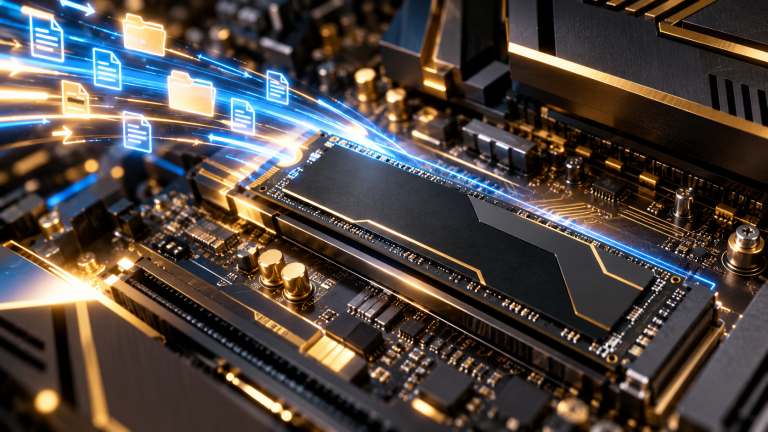
Upgrading from an older spinning hard disk drive (HDD) or an aging SATA SSD to a high-speed PCIe NVMe M.2 solid-state drive is the single most transformative upgrade you can make to your PC. System boots shrink from minutes to seconds, game loading screens virtually disappear, and application responsiveness becomes instantaneous.
However, the dread of reinstalling Windows from scratch, setting up user profiles, and re-downloading hundreds of gigabytes of software often discourages users. Fortunately, with modern disk cloning software, you can clone your entire existing Windows operating system, applications, licenses, and files directly to your new NVMe SSD typically within 30 to 90 minutes depending on drive capacity and interface speeds.
- Pre-Cloning Checklist & Requirements
- Step 1: Connect the New NVMe SSD
- Step 2: Initialize the New Drive in Windows Disk Management
- Step 3: Clone the Drive Using Disk Imaging Software
- Step 4: Boot from the New NVMe SSD
- Step 5: Post-Cloning Verification and Cleanup
- Pre-Cloning Preparation: Sector Alignment & Partition Schemes
- Free & Trusted Disk Cloning Tools Compared
- Frequently Asked Questions on SSD Cloning
- Sources & Further Reading
Pre-Cloning Checklist & Requirements
Before initiating the cloning process, ensure you have the following prerequisites ready:
- Your New NVMe SSD: Ensure the total storage capacity of your new SSD is equal to or greater than the used space on your current drive.
- Connection Hardware: An available M.2 slot on your motherboard, or an inexpensive external USB-to-NVMe M.2 enclosure.
- Reliable Cloning Software: Free and reputable disk imaging tools such as Clonezilla / Rescuezilla (Open-Source) or Vendor OEM Utilities, Clonezilla, or manufacturer utilities (Samsung Data Migration, Crucial Storage Executive).
- System Backup: Always ensure critical personal files are synced to cloud storage or an external backup drive before performing partition operations.
Step 1: Connect the New NVMe SSD
If you are upgrading a desktop with multiple M.2 slots, install the new SSD directly onto an open slot on your motherboard using the mounting standoff and screw.
If you are upgrading a laptop with only one M.2 slot, place the new NVMe SSD inside an external USB M.2 enclosure and connect it via a high-speed USB-C port.
Step 2: Initialize the New Drive in Windows Disk Management
- Right-click the Start Menu and select Disk Management.
- Windows will prompt you with an “Initialize Disk” dialogue box.
- Select the GPT (GUID Partition Table) partition style (modern UEFI systems and Windows 11 require GPT).
- Click OK. The drive will now appear as “Unallocated Space.”
Step 3: Clone the Drive Using Disk Imaging Software
In this walkthrough, we illustrate using the industry-standard cloning process:
- Launch your cloning software (e.g., Rescuezilla & Vendor Cloning Utilities or Samsung Data Migration).
- Locate your current system drive (containing the C: drive and the EFI System Partition).
- Click “Clone this disk…” located beneath the drive map.
- Under “Select a disk to clone to,” choose your newly connected NVMe SSD.
- Ensure all partitions from the source drive (EFI System Partition, Windows C: OS Partition, and Recovery Partition) are dragged over to the target drive map.
- Important: If your new SSD is larger than your old drive, click “Cloned Partition Properties” on the C: partition and expand the volume size to fill the remaining unallocated space.
- Click Next, review the cloning summary, and click Finish to start the clone.
Step 4: Boot from the New NVMe SSD
Once the cloning process confirms 100% completion, shut down your computer completely:
- For Laptops: Disconnect the old drive and swap in your newly cloned NVMe SSD into the internal M.2 bay.
- For Desktops: Power on the system and repeatedly press your BIOS/UEFI setup key (typically Del, F2, or F12).
- In your BIOS boot priority order, set your new NVMe drive (labeled with the manufacturer name, e.g., “Samsung 990 Pro” or “WD Black SN850X”) as Boot Option #1.
- Save changes and exit (press F10).
Step 5: Post-Cloning Verification and Cleanup
Once Windows boots up from your new drive:
- Open This PC and verify that your C: drive shows the updated partition size and full capacity of your new NVMe drive.
- Run a disk speed benchmark using CrystalDiskMark to confirm PCIe Gen4 or Gen3 speeds.
- Only after verifying that all your applications and files are fully operational should you format the old drive for secondary storage use.
Pre-Cloning Preparation: Sector Alignment & Partition Schemes
Before launching disk cloning software, ensuring that your source drive and destination NVMe SSD share compatible partition layouts is critical for an uncorrupted migration. In modern systems, Windows 11 requires a GUID Partition Table (GPT) paired with UEFI boot firmware, rather than legacy Master Boot Record (MBR).
To verify your drive partition style, right-click the Windows Start button, select Disk Management, right-click Disk 0, click Properties, and inspect the Volumes tab. If the partition style says GPT, your clone target will boot seamlessly in UEFI mode.
Crucial Step: What to Do with BitLocker Drive Encryption
If your Windows drive is encrypted with BitLocker or Device Encryption, cloning raw sectors without suspending encryption can cause the new SSD to prompt for a 48-digit recovery key upon initial boot. Open Control Panel → BitLocker Drive Encryption and click Suspend Protection before initiating the disk copy.
Free & Trusted Disk Cloning Tools Compared
Selecting the right cloning utility avoids corrupted master boot records and bad sector aborts:
| Software Tool | License Model | Proportional Resizing | Best Use Case |
|---|---|---|---|
| Rescuezilla & Vendor Cloning Utilities (Free v8) | Free Edition / Trial | Yes (Automatic & Manual) | Gold standard for live Windows hot-cloning |
| Clonezilla | 100% Open-Source (FOSS) | Via partition expand after | Bare-metal offline bootable USB cloning |
| Samsung Data Migration | Free (Samsung SSDs only) | Yes (Automatic) | Simple 3-click transfer to Samsung 980/990 Pro |
Frequently Asked Questions on SSD Cloning
Can I clone a larger HDD to a smaller NVMe SSD?
Yes, provided that the actual used data size on the source HDD is smaller than the total capacity of the destination SSD. For example, if you have a 1 TB HDD with only 250 GB of used files, you can easily clone it to a 500 GB NVMe SSD. Delete temporary files and empty your Recycle Bin beforehand to ensure comfortable overhead.
What should I do if the new SSD won’t boot?
Restart your computer and immediately tap F2, F12, or Del to enter UEFI/BIOS settings. Navigate to the Boot Priority menu and ensure the new NVMe drive (specifically Windows Boot Manager on NVMe) is ranked #1. If the old drive is still installed, Windows may attempt to boot from the original drive’s GUID signature.
To maintain complete data protection following your upgrade, review our guide on setting up an automated 3-2-1 backup strategy and our tips on optimizing Windows 11 performance.
Sources & Further Reading
- NVM Express (NVMe) Consortium Technical Specifications — Official hardware architecture standards covering PCIe Gen 4 / Gen 5 bandwidth, queue depth, and Host Memory Buffer (HMB) protocols.
- Microsoft Learn — Disk Management & GPT Partition Architecture — Guidelines on GUID Partition Table (GPT) alignment, UEFI boot sector initialization, and volume shrinking.
- Clonezilla Live Open-Source Project Documentation — Official technical deployment guide for bit-level and smart sector disk cloning across storage devices.