
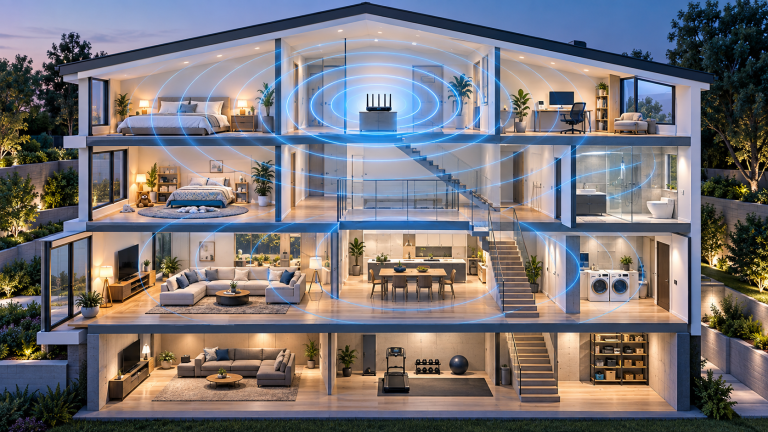
Few household frustrations rival an erratic Wi-Fi connection that drops video conferences, stutters during 4K streaming, or slows to a crawl in certain rooms. While many consumers instinctively blame their Internet Service Provider (ISP) or rush to buy expensive mesh systems, the underlying culprits are usually simple physical obstruction, radio frequency interference, or severe channel congestion. By systematically auditing your local radio environment, you can resolve Wi-Fi bottlenecks without spending a dollar.
2.4 GHz vs. 5 GHz vs. 6 GHz (Wi-Fi 6E/7): Choosing the Right Spectrum
Modern dual-band and tri-band routers broadcast across multiple radio frequencies with distinct physical characteristics:
- 2.4 GHz Spectrum: Offers extended physical range and penetrates brick walls easily, but suffers from extremely narrow bandwidth and heavy interference from microwave ovens, Bluetooth devices, and neighbor networks. Reserve 2.4 GHz exclusively for low-bandwidth smart home IoT devices.
- 5 GHz Spectrum: Provides vastly faster throughput with wider channels (80MHz to 160MHz) and minimal interference, but attenuates rapidly through concrete, tile, and dense drywall.
- 6 GHz Spectrum (Wi-Fi 6E/7): Delivers pristine, zero-congestion gigabit speeds, but requires near line-of-sight proximity to the router.
Step 1: Auditing Channel Congestion with a Wi-Fi Analyzer
In apartment complexes and dense suburban neighborhoods, dozens of routers frequently default to the exact same wireless channel, causing packet collisions:
- Download an open-source wireless scanner such as WiFi Analyzer (Android/Windows) or use macOS’s built-in Wireless Diagnostics tool (
Option + ClickWi-Fi icon → Open Wireless Diagnostics → Window → Scan). - Analyze the 2.4 GHz spectrum. Ensure your router is manually locked to one of the three non-overlapping channels: 1, 6, or 11. Avoid channels 2, 3, 4, 5, 7, 8, 9, or 10, which overlap and cause destructive adjacent-channel interference.
- On the 5 GHz spectrum, identify an uncrowded UNII-1 channel (36, 40, 44, 48) or UNII-3 channel (149, 153, 157, 161).
Step 2: Optimal Physical Router Placement
Radio waves emit outward and downward in an omnidirectional toroidal (donut-shaped) pattern. Placement mistakes degrade signal strength significantly:
- Elevate the Router: Place the unit on a desk or shelf at least 3–5 feet off the floor. Placing a router on the ground wastes half of its transmission energy into the flooring.
- Avoid Metal and Water Obstacles: Keep the router clear of metal appliances, mirrors (which reflect radio waves), and large aquariums (water severely absorbs 2.4 GHz and 5 GHz signals).
- Centralize Location: Placing a router in a corner closet on one side of a house leaves the opposite end starved of coverage.
Step 3: Solving Persistent Dead Zones (Access Points vs. Mesh vs. Powerline)
If physical walls prevent single-router coverage, choose the correct expansion hardware:
- Hardwired Ethernet Access Point (Best): Running a Cat6 cable to a secondary ceiling-mounted access point delivers 100% full-speed, zero-latency throughput.
- Tri-Band Mesh System: If running Ethernet cables is impossible, invest in a tri-band mesh system featuring a dedicated wireless backhaul radio so client traffic does not halve overall bandwidth.