
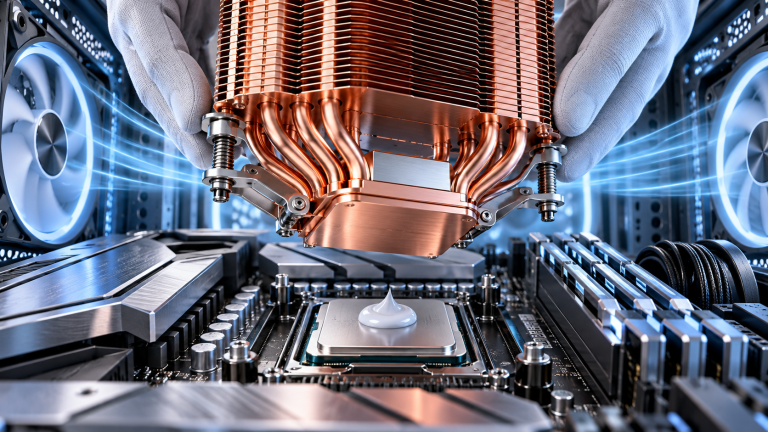
Is your computer sounding like a jet engine during basic desktop tasks? Does your laptop’s chassis feel uncomfortably hot to the touch, or are games stuttering after thirty minutes of play? Over two to three years of daily operation, cooling heatsinks accumulate thick blankets of dust, while factory thermal interface material (thermal paste) dries out and cracks. Refreshing your system’s thermal paste and cleaning heatsinks can lower operating temperatures by 15°C to 25°C, restoring peak performance and extending hardware longevity.
Required Tools and Supplies
Before opening your computer chassis, gather the correct non-conductive supplies:
- High-Purity Isopropyl Alcohol (99%): Essential for dissolving dried thermal paste without leaving conductive mineral residues or damaging circuit boards. Avoid 70% rubbing alcohol, which contains 30% water.
- Quality Non-Conductive Thermal Paste: Choose a trusted compound such as Noctua NT-H1, Arctic MX-4 / MX-6, or Thermal Grizzly Kryonaut. Avoid liquid metal compounds on laptops due to extreme electrical short risk.
- Lint-Free Microfiber Cloths or Coffee Filters: Paper towels leave abrasive fibers behind; coffee filters or microfiber cloths wipe CPU heatspreaders perfectly clean.
- Can of Compressed Air or Electric Duster: For blasting dust out of radiator fins and fan blades.
Step 1: Proper Dusting Technique
Discharge static electricity by touching a grounded metal appliance, and unplug all power cables:
- Take the PC outdoors or to a well-ventilated garage.
- Crucial Step: Hold cooling fan blades with your finger or a toothpick while blowing compressed air. Allowing fans to free-spin at high RPM under compressed air can generate electrical back-current that damages motherboard fan headers, and destroys delicate sleeve bearings.
- Thoroughly blast the intake filters, power supply shroud, and heatsink cooling fins.
Step 2: Removing the Cooler & Cleaning Old Paste
Loosen the heatsink mounting screws diagonally in an “X” pattern to release mechanical spring tension evenly across the CPU socket:
- Pro-Tip for AMD AM4/AM5 CPUs: Run your PC for 10 minutes prior to disassembly to warm the paste. Never pull a cooler straight upward on an AMD socket, which can rip the CPU out of its pins; gently twist the cooler clockwise and counter-clockwise to break the thermal seal before lifting.
- Dampen your microfiber cloth with 99% isopropyl alcohol and wipe the copper heatsink base and CPU integrated heat spreader (IHS) until both gleam with zero residual paste.
Step 3: Applying Fresh Thermal Paste
Applying the correct amount of paste is critical for thermal transfer:
- Desktop CPUs: Apply a single pea-sized drop (approx. 4–5mm) directly in the center of the CPU heat spreader. When the cooler is screwed down, mechanical mounting pressure spreads the paste evenly across the entire surface.
- Laptop Direct-Die Silicon: Laptops lack a metal heat spreader; cooling plates sit directly on raw silicon. Use the “spread method” with the included plastic spatula to spread a thin, uniform glaze across 100% of the die surface.
Reattach the cooler, tightening the screws gradually in an alternating “X” pattern until snug. Power on your system and monitor idle and load temperatures with hardware monitoring tools like HWiNFO64 to verify cooling performance.